[GH-ISSUE #1255] Container on QNAP and SSL #883

Closed
opened 2026-03-03 02:04:22 +03:00 by kerem · 5 comments
Owner

Originally created by @pagogc on GitHub (Dec 5, 2020).
Original GitHub issue: https://github.com/dani-garcia/vaultwarden/issues/1255

I am trying to get bitwardenrs running on QNAP ContainerStation for local use only.

Just by creating the Docker-Container (your official docker Container from Hub) and setting:

  • Network Settings to Bridge and Static IP

i am getting the Container to run and can connect via HTTP://ipadress.

But from the web GUI, i cant progress, as all Account Creation from Browser is only allowed with secure Connection.
HTTPS connections to ip adress cant connect to the web gui.
IOS App from Bitwarden, connecting to http://[myIpAdress] seems to work, as i get into the Vault to create new Entrys.

=========================
So i tried to set up a SSL Certificate on my own, following your WIKI.
SSH'ed into QNAP, created all certs. via openssl following the WIKI, recreated the Container with ROCKET_TLS set.
Volume added to map host location to /ssl after reading Issue #465.

But as soon as i start, i cant connect to the webgui with domainname provided in cert.

HTTP://mydomainname.local in my browser (vivaldi) is responding with: ERR_EMPTY_RESPONSE
HTTPS://mydomainname.local is responding with: ERR_CONNECTION_REFUSED

To be sure that domainname gets resolved with the local ip adress, i've added a local dns record to my pi-hole container.
To be extra sure, i flushed all dns entries on windows, and pinged the domainname, getting the right ip adress and answers.
IOS App: Account Creation: Tasked failed.

Who can help me?

PS: Console output from bitwardenrs remains the same, with or without ROCKET_TLS... no errors, just info:
[2020-12-05 11:11:29.480][bitwarden_rs][INFO] JWT keys don't exist, checking if OpenSSL is available... OpenSSL 1.1.1d 10 Sep 2019 [2020-12-05 11:11:29.485][bitwarden_rs][INFO] OpenSSL detected, creating keys... Generating RSA private key, 2048 bit long modulus (2 primes)

Also addet certs to brower/windows
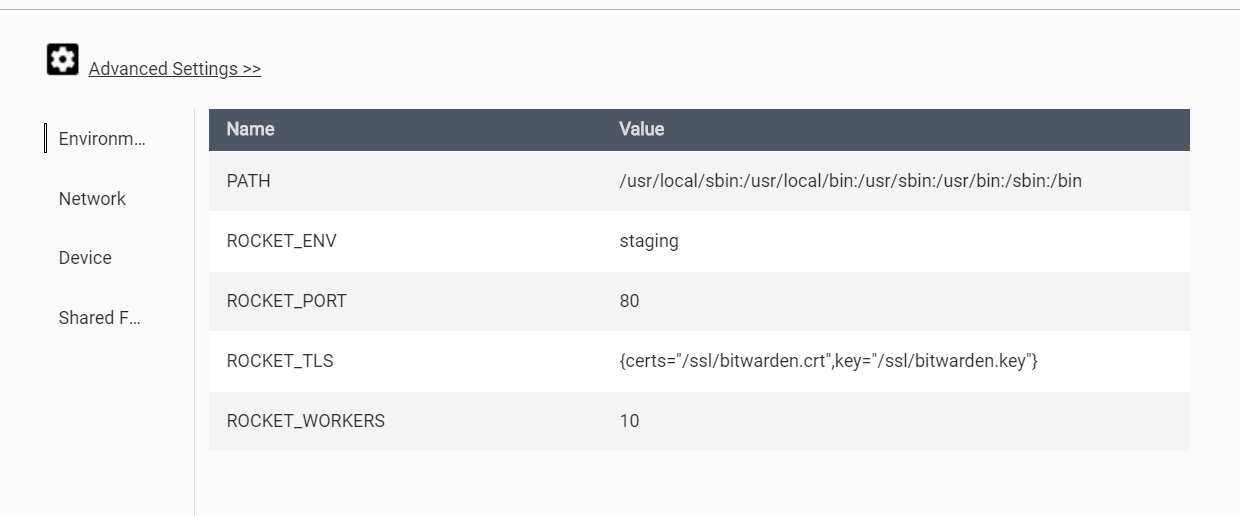
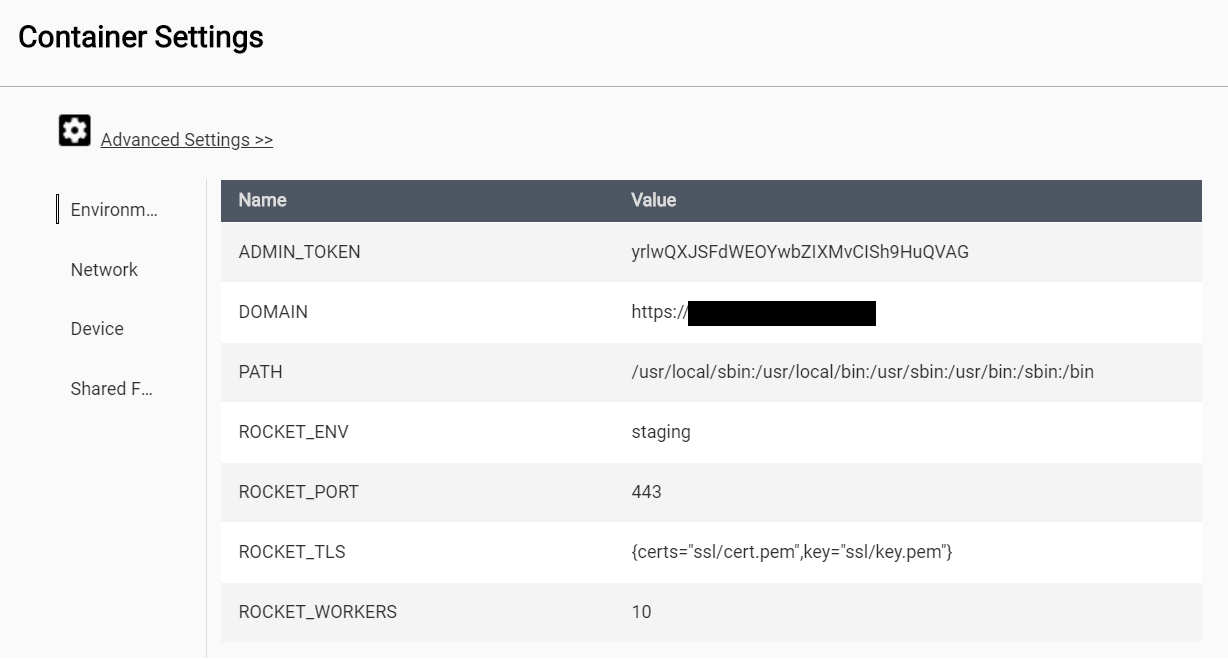
e: Added screenshots of configuration:
Screenshot 2020-12-05 041736
Screenshot 2020-12-05 041758

Originally created by @pagogc on GitHub (Dec 5, 2020). Original GitHub issue: https://github.com/dani-garcia/vaultwarden/issues/1255 I am trying to get bitwardenrs running on QNAP ContainerStation for local use only. Just by creating the Docker-Container (your official docker Container from Hub) and setting: - Network Settings to Bridge and Static IP i am getting the Container to run and can connect via HTTP://ipadress. But from the web GUI, i cant progress, as all Account Creation from Browser is only allowed with secure Connection. HTTPS connections to ip adress cant connect to the web gui. IOS App from Bitwarden, connecting to http://[myIpAdress] seems to work, as i get into the Vault to create new Entrys. ========================= So i tried to set up a SSL Certificate on my own, following your WIKI. SSH'ed into QNAP, created all certs. via openssl following the WIKI, recreated the Container with ROCKET_TLS set. Volume added to map host location to /ssl after reading Issue #465. But as soon as i start, i cant connect to the webgui with domainname provided in cert. HTTP://mydomainname.local in my browser (vivaldi) is responding with: ERR_EMPTY_RESPONSE HTTPS://mydomainname.local is responding with: ERR_CONNECTION_REFUSED To be sure that domainname gets resolved with the local ip adress, i've added a local dns record to my pi-hole container. To be extra sure, i flushed all dns entries on windows, and pinged the domainname, getting the right ip adress and answers. IOS App: Account Creation: Tasked failed. Who can help me? PS: Console output from bitwardenrs remains the same, with or without ROCKET_TLS... no errors, just info: `[2020-12-05 11:11:29.480][bitwarden_rs][INFO] JWT keys don't exist, checking if OpenSSL is available... OpenSSL 1.1.1d 10 Sep 2019 [2020-12-05 11:11:29.485][bitwarden_rs][INFO] OpenSSL detected, creating keys... Generating RSA private key, 2048 bit long modulus (2 primes)` Also addet certs to brower/windows e: Added screenshots of configuration: <img width="603" alt="Screenshot 2020-12-05 041736" src="https://user-images.githubusercontent.com/6831150/101243282-583ec080-36ff-11eb-9e26-012838d2941e.png"> <img width="620" alt="Screenshot 2020-12-05 041758" src="https://user-images.githubusercontent.com/6831150/101243283-58d75700-36ff-11eb-8a8c-320db7eae69f.png">
kerem 2026-03-03 02:04:22 +03:00
Author
Owner

@pagogc commented on GitHub (Dec 5, 2020):

Round 2:
As i tried to verify the certs with openssl (from your WIKI here), but could'nt connect to port 443, i tried port 80 with an HTTPS Request:

https://mydomain.local:80#/

This was successful, but cert seems to be invalid (but can progress through browser).
IOS App cant connect.

Used openssl 1.0.2s (28 may 2019) that was installed on QNAP (as i couldn't get it to run under windows (ssl noob here)).
Followed step by step guide from your Wiki here

<!-- gh-comment-id:739249593 --> @pagogc commented on GitHub (Dec 5, 2020): Round 2: As i tried to verify the certs with openssl (from your WIKI [here](https://github.com/dani-garcia/bitwarden_rs/wiki/Enabling-HTTPS)), but could'nt connect to port 443, i tried port 80 with an HTTPS Request: https://mydomain.local:80#/ This was successful, but cert seems to be invalid (but can progress through browser). IOS App cant connect. Used openssl 1.0.2s (28 may 2019) that was installed on QNAP (as i couldn't get it to run under windows (ssl noob here)). Followed step by step guide from your Wiki [here](https://github.com/dani-garcia/bitwarden_rs/wiki/Private-CA-and-self-signed-certs-that-work-with-Chrome)
Author
Owner

@BlackDex commented on GitHub (Dec 9, 2020):

Configure the ROCKET_PORT to be 443.
Also, make sure that bitwarden.crt contains the whole chain of certs not just 1 single cert for the domain it self.

I don't know where you got the cert from, but most providers give an full chain cert or separate chain certs which you need to merge all into one.

<!-- gh-comment-id:741984239 --> @BlackDex commented on GitHub (Dec 9, 2020): Configure the ROCKET_PORT to be 443. Also, make sure that bitwarden.crt contains the whole chain of certs not just 1 single cert for the domain it self. I don't know where you got the cert from, but most providers give an full chain cert or separate chain certs which you need to merge all into one.
Author
Owner

@pagogc commented on GitHub (Dec 13, 2020):

i am using self-signed and using "mkcert" as the readme page suggests.

mkcert -install
mkcert mydomain.local
cat mydomain.local.pem > mydomain.local-fullchain.pem
cat "$(mkcert -CAROOT)"/rootCA.pem" >> mydomain.local-fullchain.pem

After changing it to Port 443, i am getting ERR_SSL_PROTOCOL_ERROR from browser :(.

It must be the Cert or Chain, but i just dont get it :(

<!-- gh-comment-id:743976289 --> @pagogc commented on GitHub (Dec 13, 2020): i am using self-signed and using "mkcert" as the readme page suggests. `mkcert -install` `mkcert mydomain.local` `cat mydomain.local.pem > mydomain.local-fullchain.pem` `cat "$(mkcert -CAROOT)"/rootCA.pem" >> mydomain.local-fullchain.pem` After changing it to Port 443, i am getting ERR_SSL_PROTOCOL_ERROR from browser :(. It must be the Cert or Chain, but i just dont get it :(
Author
Owner

@pagogc commented on GitHub (Dec 13, 2020):

Made it work, finally.

Solution for me ( local Network / HTTPS (with Warnings) ):

Prerequisites

  • Be sure in settings to have SSH enabled.
  • Have a client to connect to your NAS via SSH (for example putty on windows).

Step 1 - Creating Container
Screenshot 2020-12-13 123456
Screenshot 2020-12-13 110104

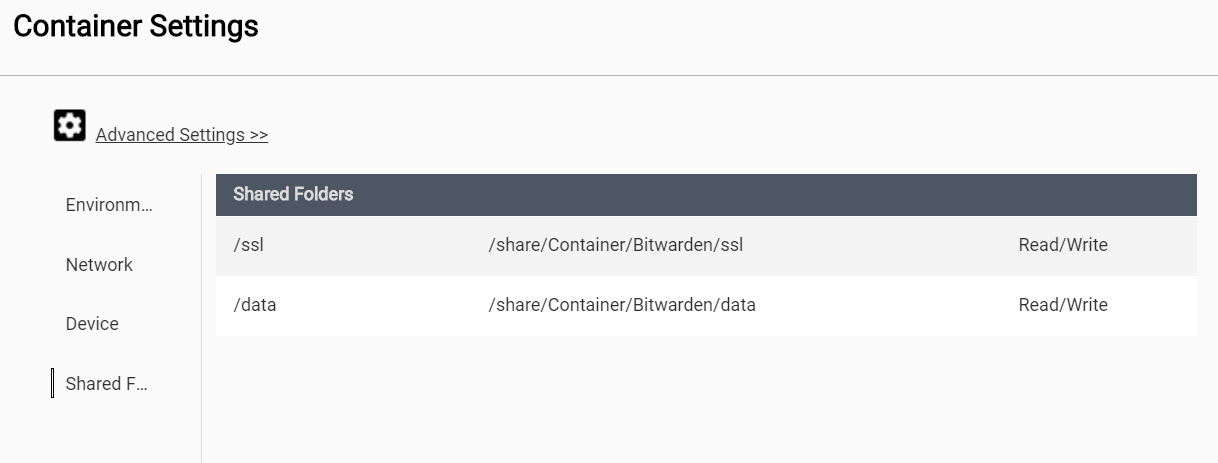
Binding both data und ssl to a location on your NAS is important, so make a new folder on your share beforehand (Filestation)

Network as you see fit:
i tested:
A) NAT:
then portforwarding in docker from example 1443 to 443 and 1080 to 80.
After initial setup you write "https://[Ipofyournas]:1443", for example in my case: https://192.168.2.200:1443

B) Bridge / Use DHCP:
Afterwards registered MAC Adress of container to my router to get fixed IP
After initial setup you write "https://[yourIP]", for example in my case: https://192.168.2.204

Step 2 - Generating CA/Cert
As generating a CA and installing it correctly didn't work for me (tried openssl on windows, mkcert on windows, copying files to NAS etc.) i followed advice from #958 to create a dummy cert directly in the container:
To quote the steps from https://lucians.dev/solve-bitwardenrs-this-subtle-is-null-error:

  • Access your Docker and stop the container
  • Login through SSH (if you have this problem and want to solve it then you should know how to login) and obtain root access (sudo su -)
  • Run this command: docker exec -it bitwarden bash – this will let you enter the docker container (that’s I understand) and explore its files
  • Create a folder named “ssl” (if not exist) in the main path of your docker containter
  • cd to that directory and run the next command: openssl req -x509 -newkey rsa:4096 -keyout key.pem -out cert.pem -days 365 -nodes – this will create key and cert files needed for the process
  • Once created, go to your Synology and in Docker – Container – bitwarden – Environment add a new variable called ROCKET_TLS and with value this value {certs="ssl/cert.pem",key="ssl/key.pem"} as suggested here
  • Start your container
  • Go to your web vault login page using https instead of http – it should show you a warning page – go ahead

As i am in a QNAP NAS, i did the following of these steps:

  • Login through SSH
  • Run this command:
    docker exec -it server-1 bash
    server-1 is default-name of bitwarden container in QNAP, adapt for your name
  • cd to ssl and run the next command: openssl req -x509 -newkey rsa:4096 -keyout key.pem -out cert.pem -days 365 -nodes
  • exit bash
  • diconnect putty

Afterwars stop the containter and restart it again.

Now you can connect to your bitwarden vault using https (getting warning on browsers, but still can continue afterwards)

PS: Extra:
As i have an pihole container running and running bitwarden in bridge mode, i set a local dns record for my domain to the ip adress of bitwarden, so i can connect via "https://mydomain.local" for example (to clarify, why i set the env variable DOMAIN_NAME)

<!-- gh-comment-id:743984119 --> @pagogc commented on GitHub (Dec 13, 2020): Made it work, finally. Solution for me ( local Network / HTTPS (with Warnings) ): **Prerequisites** - Be sure in settings to have SSH enabled. - Have a client to connect to your NAS via SSH (for example putty on windows). **Step 1 - Creating Container** <img width="614" alt="Screenshot 2020-12-13 123456" src="https://user-images.githubusercontent.com/6831150/102008679-92791500-3d32-11eb-87ab-0be2cd8c9928.png"> <img width="609" alt="Screenshot 2020-12-13 110104" src="https://user-images.githubusercontent.com/6831150/102008685-95740580-3d32-11eb-833f-0818dccc0e5c.png"> Binding both data und ssl to a location on your NAS is important, so make a new folder on your share beforehand (Filestation) Network as you see fit: i tested: A) NAT: then portforwarding in docker from example 1443 to 443 and 1080 to 80. After initial setup you write "https://[Ipofyournas]:1443", for example in my case: https://192.168.2.200:1443 B) Bridge / Use DHCP: Afterwards registered MAC Adress of container to my router to get fixed IP After initial setup you write "https://[yourIP]", for example in my case: https://192.168.2.204 **Step 2 - Generating CA/Cert** As generating a CA and installing it correctly didn't work for me (tried openssl on windows, mkcert on windows, copying files to NAS etc.) i followed advice from #958 to create a dummy cert directly in the container: To quote the steps from https://lucians.dev/solve-bitwardenrs-this-subtle-is-null-error: > - Access your Docker and stop the container > - Login through SSH (if you have this problem and want to solve it then you should know how to login) and obtain root access (sudo su -) > - Run this command: docker exec -it bitwarden bash – this will let you enter the docker container (that’s I understand) and explore its files > - Create a folder named “ssl” (if not exist) in the main path of your docker containter > - cd to that directory and run the next command: openssl req -x509 -newkey rsa:4096 -keyout key.pem -out cert.pem -days 365 -nodes – this will create key and cert files needed for the process > - Once created, go to your Synology and in Docker – Container – bitwarden – Environment add a new variable called ROCKET_TLS and with value this value {certs="ssl/cert.pem",key="ssl/key.pem"} as suggested here > - Start your container > - Go to your web vault login page using https instead of http – it should show you a warning page – go ahead As i am in a QNAP NAS, i did the following of these steps: > - Login through SSH > - Run this command: > docker exec -it server-1 bash > server-1 is default-name of bitwarden container in QNAP, adapt for your name > - cd to ssl and run the next command: openssl req -x509 -newkey rsa:4096 -keyout key.pem -out cert.pem -days 365 -nodes > - exit bash > - diconnect putty Afterwars stop the containter and restart it again. Now you can connect to your bitwarden vault using https (getting warning on browsers, but still can continue afterwards) PS: Extra: As i have an pihole container running and running bitwarden in bridge mode, i set a local dns record for my domain to the ip adress of bitwarden, so i can connect via "https://mydomain.local" for example (to clarify, why i set the env variable DOMAIN_NAME)
Author
Owner

@pagogc commented on GitHub (Dec 13, 2020):

For completeness, when you go route B (own IP Adress for Docker container) described above:

If you want a proper certificate, so all devices on local network can interact per HTTPS/SSL with this solution:

i followed this guide/script, created it under "/ssl" in docker container/NAS, executed it in docker containter in "/ssl" folder via ssh as before:
https://community.bitwarden.com/t/ssl-certificate-for-lan-only-access-ios-13/13616/8

Adaption to script before executing:
After the lines starting with: "DNS.2 = ..." create a new line with the following:
IP.1 = IpAdressOfBitwarden

Example
IP.1 = 192.168.2.204

  • afterwards copying following files from -> to (if the Containter Settings are as in the Screenshots above):
    1.) /ssl/domain/[YOURDOMAIN].crt -> /ssl/cert.pem
    2.) /ssl/domain/[YOURDOMAIN].key -> /ssl/key.pem

  • restarting docker container (for example via containter station).

Now all devices need the root-certificate:

  • Windows (tested on Windows 10 Pro):
    Go to your NAS WebGui -> Filestation to the folder, where bitwarden ssl folder is located.
    There lies a ca folder, inside download rootCA.crt
    Windows-KEY or bottom left and search "certificate" and click "install computercertificate" (or something similar).
    rightclick on tree "trusted root certificates" -> import and choose downloaded rootCA.crt.

Now you are set up for almost all browsers and Chrome plugin.
either with domainname (if you have a DNS Resolver or something in your network, like pi-hole, for resolving your domainname with local ip) or with ip-adress.

  • For mobile devices (tested Iphone X 14.2, Bitwarden App 2.7.0 (358)):
    Follow this instruction, chapter "Adding the Root Certificate to iOS":

https://deliciousbrains.com/ssl-certificate-authority-for-local-https-development/

  • download bitwarden app, open it, set base-url in settings (upper left corner) to "https://yourip", ACCEPT the Request for searching your local network, enter credentials and you're good to go.

PS:
i have not cleared the last stage that my phone resolves local DNS records.
Therefore adding the IP adress in the certificate above.

<!-- gh-comment-id:744050580 --> @pagogc commented on GitHub (Dec 13, 2020): For completeness, when you go route B (own IP Adress for Docker container) described above: If you want a proper certificate, so all devices on local network can interact per HTTPS/SSL with this solution: i followed this guide/script, created it under "/ssl" in docker container/NAS, executed it in docker containter in "/ssl" folder via ssh as before: https://community.bitwarden.com/t/ssl-certificate-for-lan-only-access-ios-13/13616/8 Adaption to script before executing: After the lines starting with: "DNS.2 = ..." create a new line with the following: `IP.1 = IpAdressOfBitwarden` Example `IP.1 = 192.168.2.204` - afterwards copying following files from -> to (if the Containter Settings are as in the Screenshots above): 1.) /ssl/domain/[YOURDOMAIN].crt -> /ssl/cert.pem 2.) /ssl/domain/[YOURDOMAIN].key -> /ssl/key.pem - restarting docker container (for example via containter station). Now all devices need the root-certificate: - Windows (tested on Windows 10 Pro): Go to your NAS WebGui -> Filestation to the folder, where bitwarden ssl folder is located. There lies a ca folder, inside download rootCA.crt Windows-KEY or bottom left and search "certificate" and click "install computercertificate" (or something similar). rightclick on tree "trusted root certificates" -> import and choose downloaded rootCA.crt. Now you are set up for almost all browsers and Chrome plugin. either with domainname (if you have a DNS Resolver or something in your network, like pi-hole, for resolving your domainname with local ip) or with ip-adress. - For mobile devices (tested Iphone X 14.2, Bitwarden App 2.7.0 (358)): Follow this instruction, chapter "Adding the Root Certificate to iOS": https://deliciousbrains.com/ssl-certificate-authority-for-local-https-development/ - download bitwarden app, open it, set base-url in settings (upper left corner) to "https://yourip", ACCEPT the Request for searching your local network, enter credentials and you're good to go. PS: i have not cleared the last stage that my phone resolves local DNS records. Therefore adding the IP adress in the certificate above.
Sign in to join this conversation.
No milestone
No project
No assignees
1 participant
Notifications
Due date
The due date is invalid or out of range. Please use the format "yyyy-mm-dd".

No due date set.

Dependencies

No dependencies set.

Reference
starred/vaultwarden#883
No description provided.