[GH-ISSUE #1571] Pleroma proxy setup #1187

Closed
opened 2026-02-26 06:36:08 +03:00 by kerem · 9 comments
Owner

Originally created by @ErikUden on GitHub (Nov 6, 2021).
Original GitHub issue: https://github.com/NginxProxyManager/nginx-proxy-manager/issues/1571

Are you in the right place?

Checklist

  • Have you pulled and found the error with jc21/nginx-proxy-manager:latest docker image?
    • Yes
  • Are you sure you're not using someone else's docker image?
    • Yes
  • Have you searched for similar issues (both open and closed)?
    • Yes

Describe the bug
Hello there!

I have recently installed Pleroma on my Raspberry Pi and have now used a different Raspberry Pi to reverse proxy it using the Reverse Proxy Manager. However, the actual setup requires a much more complex and different setup than what the Nginx Reverse Proxy Manager can deliver via the user interface. I began using the reverse proxy manager because back then I didn't understand anything about hosting and nginx, nowadays, I understand quite a bit, at least enough to be able to ssh into the server and edit a config file myself. Is there any way to do that with the Nginx Reverse Proxy Manager?

This is my complex Nginx setup that I need:

    # default nginx site config for Pleroma
    #
    # Simple installation instructions:
    # 1. Install your TLS certificate, possibly using Let's Encrypt.
    # 2. Replace 'example.tld' with your instance's domain wherever it appears.
    # 3. Copy this file to /etc/nginx/sites-available/ and then add a symlink to it
    #    in /etc/nginx/sites-enabled/ and run 'nginx -s reload' or restart nginx.
    
    proxy_cache_path /tmp/pleroma-media-cache levels=1:2 keys_zone=pleroma_media_cache:10m max_size=10g
                     inactive=720m use_temp_path=off;
    
    # this is explicitly IPv4 since Pleroma.Web.Endpoint binds on IPv4 only
    # and `localhost.` resolves to [::0] on some systems: see issue #930
    upstream phoenix {
        server 192.168.178.113:5000 max_fails=5 fail_timeout=60s;
    }
    
    server {
        server_name    social.uden.ai;
    
        listen         80;
        listen         [::]:80;
    
        # Uncomment this if you need to use the 'webroot' method with certbot. Make sure
        # that the directory exists and that it is accessible by the webserver. If you followed
        # the guide, you already ran 'mkdir -p /var/lib/letsencrypt' to create the folder.
        # You may need to load this file with the ssl server block commented out, run certbot
        # to get the certificate, and then uncomment it.
        #
        # location ~ /\.well-known/acme-challenge {
        #     root /var/lib/letsencrypt/;
        # }
        location / {
          return         301 https://$server_name$request_uri;
        }
    }
    
    # Enable SSL session caching for improved performance
    ssl_session_cache shared:ssl_session_cache:10m;
    
    server {
        server_name social.uden.ai;
    
        listen 443 ssl http2;
        listen [::]:443 ssl http2;
        ssl_session_timeout 1d;
        ssl_session_cache shared:MozSSL:10m;  # about 40000 sessions
        ssl_session_tickets off;
    
        ssl_trusted_certificate   /etc/letsencrypt/live/example.tld/chain.pem;
        ssl_certificate           /etc/letsencrypt/live/example.tld/fullchain.pem;
        ssl_certificate_key       /etc/letsencrypt/live/example.tld/privkey.pem;
    
        ssl_protocols TLSv1.2 TLSv1.3;
        ssl_ciphers "ECDHE-ECDSA-AES256-GCM-SHA384:ECDHE-RSA-AES256-GCM-SHA384:ECDHE-ECDSA-CHACHA20-POLY1305:ECDHE-RSA-CHACHA20-POLY1305:ECDHE-ECDSA-AES128-GCM-SHA256:ECDHE-RSA-AES128-GCM-SHA256:ECDHE-ECDSA-AES256-SHA384:ECDHE-RSA-AES256-SHA384:!aNULL:!eNULL:!EXPORT:!DES:!MD5:!PSK:!RC4";
        ssl_prefer_server_ciphers off;
        # In case of an old server with an OpenSSL version of 1.0.2 or below,
        # leave only prime256v1 or comment out the following line.
        ssl_ecdh_curve X25519:prime256v1:secp384r1:secp521r1;
        ssl_stapling on;
        ssl_stapling_verify on;
    
        gzip_vary on;
        gzip_proxied any;
        gzip_comp_level 6;
        gzip_buffers 16 8k;
        gzip_http_version 1.1;
        gzip_types text/plain text/css application/json application/javascript text/xml application/xml application/xml+rss text/javascript application/activity+json application/atom+xml;
    
        # the nginx default is 1m, not enough for large media uploads
        client_max_body_size 16m;
        ignore_invalid_headers off;
    
        proxy_http_version 1.1;
        proxy_set_header Upgrade $http_upgrade;
        proxy_set_header Connection "upgrade";
        proxy_set_header Host $http_host;
        proxy_set_header X-Forwarded-For $proxy_add_x_forwarded_for;
    
        location / {
            proxy_pass http://phoenix;
        }
    
        location ~ ^/(media|proxy) {
            proxy_cache        pleroma_media_cache;
            slice              1m;
            proxy_cache_key    $host$uri$is_args$args$slice_range;
            proxy_set_header   Range $slice_range;
            proxy_cache_valid  200 206 301 304 1h;
            proxy_cache_lock   on;
            proxy_ignore_client_abort on;
            proxy_buffering    on;
            chunked_transfer_encoding on;
            proxy_pass         http://phoenix;
        }
    }

I like the fact that Nginx takes care of my SSL certificates. I like the fact that it "blocks common exploits" or "caches assets" however, I would really like for my service to work and this is the setup it will need for that.

This is how the file (in nginx/data/nginx/proxy\_host/28.conf) looks like:

    # ------------------------------------------------------------
    # social.uden.ai
    # ------------------------------------------------------------

    server {
      set $forward_scheme http;
      set $server         "192.168.178.113";
      set $port           5000;
    
      listen 80;
    listen [::]:80;
    
    listen 443 ssl http2;
    listen [::]:443;

      server_name social.uden.ai;

      # Let's Encrypt SSL
      include conf.d/include/letsencrypt-acme-challenge.conf;
      include conf.d/include/ssl-ciphers.conf;
      ssl_certificate /etc/letsencrypt/live/npm-73/fullchain.pem;
      ssl_certificate_key /etc/letsencrypt/live/npm-73/privkey.pem;

    # Asset Caching
      include conf.d/include/assets.conf;

      # Block Exploits
      include conf.d/include/block-exploits.conf;
    
      access_log /data/logs/proxy_host-28.log proxy;
    
    location /api/fedsocket/v1 {
            proxy_request_buffering off;
            proxy_pass http://192.168.178.113:5000/api/fedsocket/v1;
        }
    
        location / {
                proxy_pass http://192.168.178.113:5000;
        }
    
      # Custom
      include /data/nginx/custom/server_proxy[.]conf;
    }

This is what I added myself through the interface.

    location /api/fedsocket/v1 {
            proxy_request_buffering off;
            proxy_pass http://192.168.178.113:5000/api/fedsocket/v1;
        }
    
        location / {
                proxy_pass http://192.168.178.113:5000;
        }

It made some of the important features work, but sadly not the most important.

Obviously I could replace the SSL section with the one provided by the Nginx reverse proxy manager, right?

Please help me! You are my only hope. Any comment, question or help is appreciated!

Nginx Proxy Manager Version
v2.8.1

To Reproduce
Steps to reproduce the behavior:

  1. SSH into your host machine
  2. From wherever you installed nginx, go to /nginx/data/nginx/proxy_host
  3. Go to the newest config file, or create a new one
  4. Paste the configuration that I've specified above
  5. See error

Expected behavior
It should work and reverse proxy my Pleroma instance

Operating System
I am on arm64 on my Raspberry Pi 4b 4GB.

Additional context
I just need the exact configuration specified here: https://docs-develop.pleroma.social/backend/installation/otp_en/#edit-the-nginx-config to work on my system. However, Pleroma isn't hosted on the same Raspberry Pi as is the Nginx Reverse Proxy Manager, so it needs some editions (localhost needs to be changed to an IP address, etc.)

Originally created by @ErikUden on GitHub (Nov 6, 2021). Original GitHub issue: https://github.com/NginxProxyManager/nginx-proxy-manager/issues/1571 Are you in the right place? - If you are looking for support on how to get your upstream server forwarding, please consider asking the community on Reddit. I have tried asking on Reddit: https://www.reddit.com/r/nginxproxymanager/comments/qlaam6/ However, I have received no answer as of yet. I replaced the **Checklist** - Have you pulled and found the error with `jc21/nginx-proxy-manager:latest` docker image? - Yes - Are you sure you're not using someone else's docker image? - Yes - Have you searched for similar issues (both open and closed)? - Yes **Describe the bug** Hello there! I have recently installed [Pleroma](https://docs-develop.pleroma.social/backend/installation/otp_en/) on my Raspberry Pi and have now used a different Raspberry Pi to reverse proxy it using the Reverse Proxy Manager. However, the actual setup requires a much more complex and different setup than what the Nginx Reverse Proxy Manager can deliver via the user interface. I began using the reverse proxy manager because back then I didn't understand anything about hosting and nginx, nowadays, I understand quite a bit, at least enough to be able to ssh into the server and edit a config file myself. Is there any way to do that with the Nginx Reverse Proxy Manager? This is my complex Nginx setup that I need: ```nginx # default nginx site config for Pleroma # # Simple installation instructions: # 1. Install your TLS certificate, possibly using Let's Encrypt. # 2. Replace 'example.tld' with your instance's domain wherever it appears. # 3. Copy this file to /etc/nginx/sites-available/ and then add a symlink to it # in /etc/nginx/sites-enabled/ and run 'nginx -s reload' or restart nginx. proxy_cache_path /tmp/pleroma-media-cache levels=1:2 keys_zone=pleroma_media_cache:10m max_size=10g inactive=720m use_temp_path=off; # this is explicitly IPv4 since Pleroma.Web.Endpoint binds on IPv4 only # and `localhost.` resolves to [::0] on some systems: see issue #930 upstream phoenix { server 192.168.178.113:5000 max_fails=5 fail_timeout=60s; } server { server_name social.uden.ai; listen 80; listen [::]:80; # Uncomment this if you need to use the 'webroot' method with certbot. Make sure # that the directory exists and that it is accessible by the webserver. If you followed # the guide, you already ran 'mkdir -p /var/lib/letsencrypt' to create the folder. # You may need to load this file with the ssl server block commented out, run certbot # to get the certificate, and then uncomment it. # # location ~ /\.well-known/acme-challenge { # root /var/lib/letsencrypt/; # } location / { return 301 https://$server_name$request_uri; } } # Enable SSL session caching for improved performance ssl_session_cache shared:ssl_session_cache:10m; server { server_name social.uden.ai; listen 443 ssl http2; listen [::]:443 ssl http2; ssl_session_timeout 1d; ssl_session_cache shared:MozSSL:10m; # about 40000 sessions ssl_session_tickets off; ssl_trusted_certificate /etc/letsencrypt/live/example.tld/chain.pem; ssl_certificate /etc/letsencrypt/live/example.tld/fullchain.pem; ssl_certificate_key /etc/letsencrypt/live/example.tld/privkey.pem; ssl_protocols TLSv1.2 TLSv1.3; ssl_ciphers "ECDHE-ECDSA-AES256-GCM-SHA384:ECDHE-RSA-AES256-GCM-SHA384:ECDHE-ECDSA-CHACHA20-POLY1305:ECDHE-RSA-CHACHA20-POLY1305:ECDHE-ECDSA-AES128-GCM-SHA256:ECDHE-RSA-AES128-GCM-SHA256:ECDHE-ECDSA-AES256-SHA384:ECDHE-RSA-AES256-SHA384:!aNULL:!eNULL:!EXPORT:!DES:!MD5:!PSK:!RC4"; ssl_prefer_server_ciphers off; # In case of an old server with an OpenSSL version of 1.0.2 or below, # leave only prime256v1 or comment out the following line. ssl_ecdh_curve X25519:prime256v1:secp384r1:secp521r1; ssl_stapling on; ssl_stapling_verify on; gzip_vary on; gzip_proxied any; gzip_comp_level 6; gzip_buffers 16 8k; gzip_http_version 1.1; gzip_types text/plain text/css application/json application/javascript text/xml application/xml application/xml+rss text/javascript application/activity+json application/atom+xml; # the nginx default is 1m, not enough for large media uploads client_max_body_size 16m; ignore_invalid_headers off; proxy_http_version 1.1; proxy_set_header Upgrade $http_upgrade; proxy_set_header Connection "upgrade"; proxy_set_header Host $http_host; proxy_set_header X-Forwarded-For $proxy_add_x_forwarded_for; location / { proxy_pass http://phoenix; } location ~ ^/(media|proxy) { proxy_cache pleroma_media_cache; slice 1m; proxy_cache_key $host$uri$is_args$args$slice_range; proxy_set_header Range $slice_range; proxy_cache_valid 200 206 301 304 1h; proxy_cache_lock on; proxy_ignore_client_abort on; proxy_buffering on; chunked_transfer_encoding on; proxy_pass http://phoenix; } } ``` I like the fact that Nginx takes care of my SSL certificates. I like the fact that it "blocks common exploits" or "caches assets" however, I would really like for my service to work and this is the setup it will need for that. This is how the file (in `nginx/data/nginx/proxy\_host/28.conf`) looks like: ```nginx # ------------------------------------------------------------ # social.uden.ai # ------------------------------------------------------------ server { set $forward_scheme http; set $server "192.168.178.113"; set $port 5000; listen 80; listen [::]:80; listen 443 ssl http2; listen [::]:443; server_name social.uden.ai; # Let's Encrypt SSL include conf.d/include/letsencrypt-acme-challenge.conf; include conf.d/include/ssl-ciphers.conf; ssl_certificate /etc/letsencrypt/live/npm-73/fullchain.pem; ssl_certificate_key /etc/letsencrypt/live/npm-73/privkey.pem; # Asset Caching include conf.d/include/assets.conf; # Block Exploits include conf.d/include/block-exploits.conf; access_log /data/logs/proxy_host-28.log proxy; location /api/fedsocket/v1 { proxy_request_buffering off; proxy_pass http://192.168.178.113:5000/api/fedsocket/v1; } location / { proxy_pass http://192.168.178.113:5000; } # Custom include /data/nginx/custom/server_proxy[.]conf; } ``` This is what I added myself through the interface. ```nginx location /api/fedsocket/v1 { proxy_request_buffering off; proxy_pass http://192.168.178.113:5000/api/fedsocket/v1; } location / { proxy_pass http://192.168.178.113:5000; } ``` It made some of the important features work, but sadly not the most important. Obviously I could replace the SSL section with the one provided by the Nginx reverse proxy manager, right? ​ Please help me! You are my only hope. Any comment, question or help is appreciated! **Nginx Proxy Manager Version** v2.8.1 **To Reproduce** Steps to reproduce the behavior: 1. SSH into your host machine 2. From wherever you installed nginx, go to /nginx/data/nginx/proxy_host 3. Go to the newest config file, or create a new one 4. Paste the configuration that I've specified above 5. See error **Expected behavior** It should work and reverse proxy my Pleroma instance **Operating System** I am on arm64 on my Raspberry Pi 4b 4GB. **Additional context** I just need the exact configuration specified here: https://docs-develop.pleroma.social/backend/installation/otp_en/#edit-the-nginx-config to work on my system. However, Pleroma isn't hosted on the same Raspberry Pi as is the Nginx Reverse Proxy Manager, so it needs some editions (localhost needs to be changed to an IP address, etc.)
kerem 2026-02-26 06:36:08 +03:00
Author
Owner

@chaptergy commented on GitHub (Nov 6, 2021):

What "most important feature" haven't you got working? SSL should work out of the box when you have created the proxy host and associated a certificate with it.

You can add these headers via the advanced config:

ssl_session_tickets off;
ssl_stapling on;
ssl_stapling_verify on;

gzip_vary on;
gzip_proxied any;
gzip_comp_level 6;
gzip_buffers 16 8k;
gzip_http_version 1.1;
gzip_types text/plain text/css application/json application/javascript text/xml application/xml application/xml+rss text/javascript application/activity+json application/atom+xml;

# the nginx default is 1m, not enough for large media uploads
client_max_body_size 16m;
ignore_invalid_headers off;

This snippet

proxy_cache_path /tmp/pleroma-media-cache levels=1:2 keys_zone=pleroma_media_cache:10m max_size=10g
                 inactive=720m use_temp_path=off;

would have to be written in a file on your host and mounted into the docker container at /data/nginx/custom/http_top.conf.

Then you can also add a custom location ~ ^/(media|proxy) with target 192.168.178.113:5000 and advanced config

proxy_cache        pleroma_media_cache;
slice              1m;
proxy_cache_key    $host$uri$is_args$args$slice_range;
proxy_set_header   Range $slice_range;
proxy_cache_valid  200 206 301 304 1h;
proxy_cache_lock   on;
proxy_ignore_client_abort on;
proxy_buffering    on;
chunked_transfer_encoding on;
<!-- gh-comment-id:962501434 --> @chaptergy commented on GitHub (Nov 6, 2021): What "most important feature" haven't you got working? SSL should work out of the box when you have created the proxy host and associated a certificate with it. You can add these headers via the advanced config: ```nginx ssl_session_tickets off; ssl_stapling on; ssl_stapling_verify on; gzip_vary on; gzip_proxied any; gzip_comp_level 6; gzip_buffers 16 8k; gzip_http_version 1.1; gzip_types text/plain text/css application/json application/javascript text/xml application/xml application/xml+rss text/javascript application/activity+json application/atom+xml; # the nginx default is 1m, not enough for large media uploads client_max_body_size 16m; ignore_invalid_headers off; ``` This snippet ```nginx proxy_cache_path /tmp/pleroma-media-cache levels=1:2 keys_zone=pleroma_media_cache:10m max_size=10g inactive=720m use_temp_path=off; ``` would have to be written in a file on your host and [mounted into the docker container at `/data/nginx/custom/http_top.conf`](https://nginxproxymanager.com/advanced-config/#custom-nginx-configurations). Then you can also add a custom location `~ ^/(media|proxy)` with target `192.168.178.113:5000` and advanced config ```nginx proxy_cache pleroma_media_cache; slice 1m; proxy_cache_key $host$uri$is_args$args$slice_range; proxy_set_header Range $slice_range; proxy_cache_valid 200 206 301 304 1h; proxy_cache_lock on; proxy_ignore_client_abort on; proxy_buffering on; chunked_transfer_encoding on; ```
Author
Owner

@ErikUden commented on GitHub (Nov 7, 2021):

Thank you very much for your help and your easy to follow answer!

So, I've SSH'd into the docker container using
sudo docker exec -it --user root containerID sh
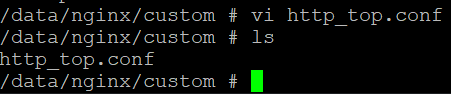
I've created the file and directory ("custom" didn't exist)
image
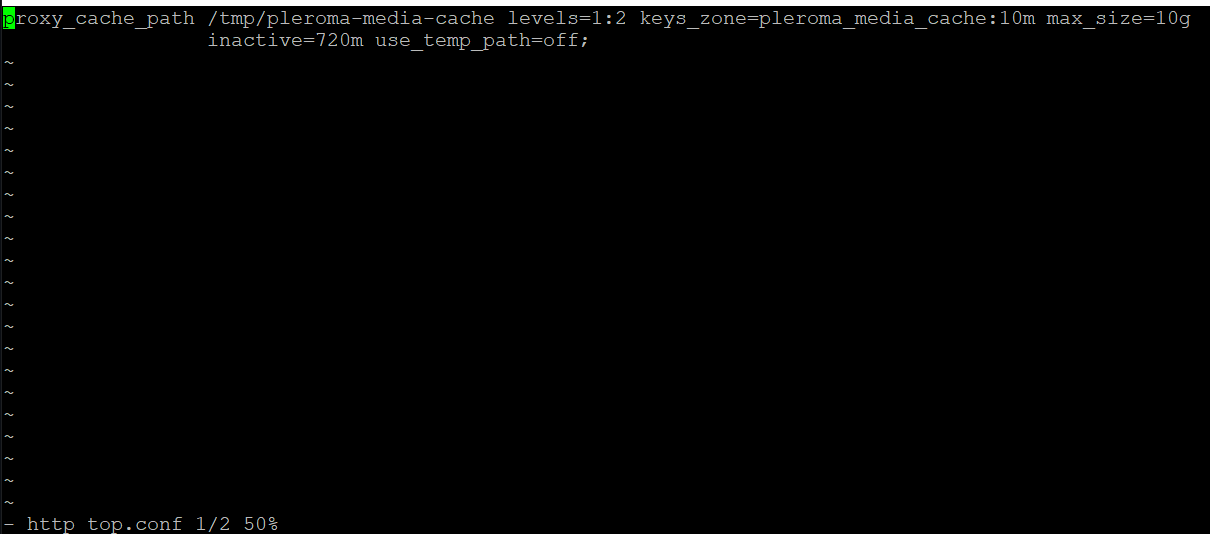
This is how the file "http_top.conf" looks like:
image

I have successfully added

location /api/fedsocket/v1 {
        proxy_request_buffering off;
        proxy_pass http://192.168.178.113:5000/api/fedsocket/v1;
    }


gzip_vary on;
gzip_proxied any;
gzip_comp_level 6;
gzip_buffers 16 8k;
gzip_http_version 1.1;
gzip_types text/plain text/css application/json application/javascript text/xml application/xml application/xml+rss text/javascript application/activity+json application/atom+xml;

# the nginx default is 1m, not enough for large media uploads
client_max_body_size 16m;
ignore_invalid_headers off;

proxy_cache        pleroma_media_cache;
slice              1m;
proxy_cache_key    $host$uri$is_args$args$slice_range;
proxy_set_header   Range $slice_range;
proxy_cache_valid  200 206 301 304 1h;
proxy_cache_lock   on;
proxy_ignore_client_abort on;
proxy_buffering    on;
chunked_transfer_encoding on;

So, everything you suggested worked! I think. I even restarted nginx using systemctl.

Whenever I entered any of this code:

ssl_session_timeout 1d;
ssl_session_cache shared:MozSSL:10m;  # about 40000 sessions
ssl_session_tickets off;

ssl_protocols TLSv1.2 TLSv1.3;
ssl_ciphers "ECDHE-ECDSA-AES256-GCM-SHA384:ECDHE-RSA-AES256-GCM-SHA384:ECDHE-ECDSA-CHACHA20-POLY1305:ECDHE-RSA-CHACHA20-POLY1305:ECDHE-ECDSA-AES128-GCM-SHA256:ECDHE-RSA-AES128-GCM-SHA256:ECDHE-ECDSA-AES256-SHA384:ECDHE-RSA-AES256-SHA384:!aNULL:!eNULL:!EXPORT:!DES:!MD5:!PSK:!RC4";
ssl_prefer_server_ciphers off;

ssl_stapling on;
ssl_stapling_verify on;

Into my advanced config, it seemed to go offline, so I think the nginx reverse proxy manager already takes care of SSL.

The only thing that I have not done is add a custom location called "~ ^/(media|proxy)". Should I just write it into the same http_top.conf file with 192.168.178.113:5000 ?

<!-- gh-comment-id:962677734 --> @ErikUden commented on GitHub (Nov 7, 2021): Thank you very much for your help and your easy to follow answer! So, I've SSH'd into the docker container using `sudo docker exec -it --user root containerID sh` I've created the file and directory ("custom" didn't exist) ![image](https://user-images.githubusercontent.com/52011431/140661076-d84d8dfd-61b9-49e4-ba7a-31a115ee7ed6.png) This is how the file "http_top.conf" looks like: ![image](https://user-images.githubusercontent.com/52011431/140661101-6686d105-33d5-4def-98b2-3228d335befb.png) I have successfully added ``` location /api/fedsocket/v1 { proxy_request_buffering off; proxy_pass http://192.168.178.113:5000/api/fedsocket/v1; } gzip_vary on; gzip_proxied any; gzip_comp_level 6; gzip_buffers 16 8k; gzip_http_version 1.1; gzip_types text/plain text/css application/json application/javascript text/xml application/xml application/xml+rss text/javascript application/activity+json application/atom+xml; # the nginx default is 1m, not enough for large media uploads client_max_body_size 16m; ignore_invalid_headers off; proxy_cache pleroma_media_cache; slice 1m; proxy_cache_key $host$uri$is_args$args$slice_range; proxy_set_header Range $slice_range; proxy_cache_valid 200 206 301 304 1h; proxy_cache_lock on; proxy_ignore_client_abort on; proxy_buffering on; chunked_transfer_encoding on; ``` So, everything you suggested worked! I think. I even restarted nginx using systemctl. Whenever I entered any of this code: ``` ssl_session_timeout 1d; ssl_session_cache shared:MozSSL:10m; # about 40000 sessions ssl_session_tickets off; ssl_protocols TLSv1.2 TLSv1.3; ssl_ciphers "ECDHE-ECDSA-AES256-GCM-SHA384:ECDHE-RSA-AES256-GCM-SHA384:ECDHE-ECDSA-CHACHA20-POLY1305:ECDHE-RSA-CHACHA20-POLY1305:ECDHE-ECDSA-AES128-GCM-SHA256:ECDHE-RSA-AES128-GCM-SHA256:ECDHE-ECDSA-AES256-SHA384:ECDHE-RSA-AES256-SHA384:!aNULL:!eNULL:!EXPORT:!DES:!MD5:!PSK:!RC4"; ssl_prefer_server_ciphers off; ssl_stapling on; ssl_stapling_verify on; ``` Into my advanced config, it seemed to go offline, so I think the nginx reverse proxy manager already takes care of SSL. The only thing that I have not done is add a custom location called "~ ^/(media|proxy)". Should I just write it into the same http_top.conf file with `192.168.178.113:5000` ?
Author
Owner

@chaptergy commented on GitHub (Nov 7, 2021):

You have created the file inside the container, which is fine for now, but be warned that it will probably no longer be there when you update. What I meant is mounting it into the container via your docker-compose. That way the file stays on your host and gets mounted into every version of the container there will be.

Not sure why the ssl config crashes your host, it does not do it for me. When you hover over the Offline status, you can see the error message. NPM takes care of generating the ssl certificate, but these configs are additional options for the tls connection between the host and the proxy. Some of them are already set and I just guessed which ones you should add, but it turns out only these three ssl settings are not yet set:

ssl_session_tickets off;
ssl_stapling on;
ssl_stapling_verify on;

However they are most likely not required for the service to work correctly, so you could also just not add them.

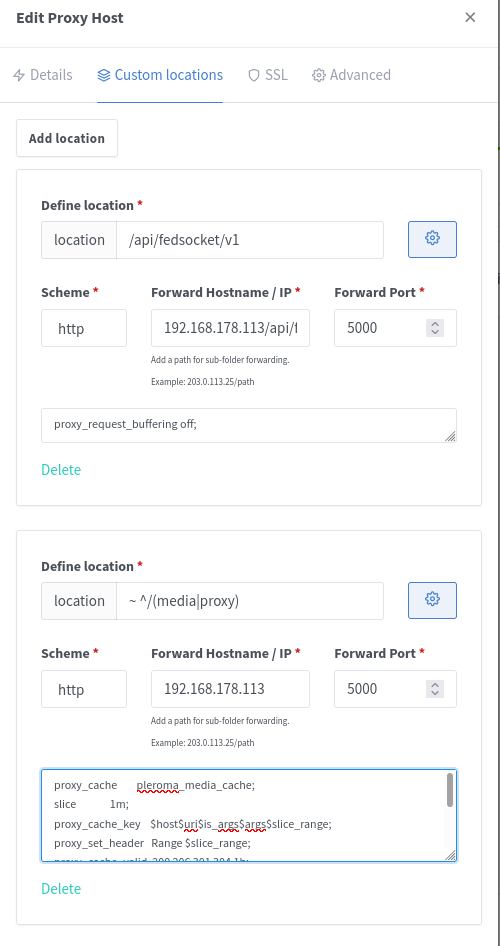
I also assumed you added the custom location via the custom locations tab, but you have added it via the advanced config? You can add them in the custom locations tab:
image

But this is most likely also optional as this only changes the caching behavior of media files. If you do not add this custom location, you also do not need the http_top.conf file.

<!-- gh-comment-id:962679629 --> @chaptergy commented on GitHub (Nov 7, 2021): You have created the file inside the container, which is fine for now, but be warned that it will probably no longer be there when you update. What I meant is [mounting it into the container via your docker-compose](https://stackoverflow.com/questions/42248198/how-to-mount-a-single-file-in-a-volume/42260979#42260979). That way the file stays on your host and gets mounted into every version of the container there will be. Not sure why the ssl config crashes your host, it does not do it for me. When you hover over the _Offline_ status, you can see the error message. NPM takes care of generating the ssl certificate, but these configs are additional options for the tls connection between the host and the proxy. Some of them are already set and I just guessed which ones you should add, but it turns out only these three ssl settings are not yet set: ```nginx ssl_session_tickets off; ssl_stapling on; ssl_stapling_verify on; ``` However they are most likely not required for the service to work correctly, so you could also just not add them. I also assumed you added the custom location via the custom locations tab, but you have added it via the advanced config? You can add them in the custom locations tab: ![image](https://user-images.githubusercontent.com/26956711/140661662-ff5ad78b-b59b-4416-b7f6-a27df6147f77.png) But this is most likely also optional as this only changes the caching behavior of media files. If you do not add this custom location, you also do not need the `http_top.conf` file.
Author
Owner

@ErikUden commented on GitHub (Nov 7, 2021):

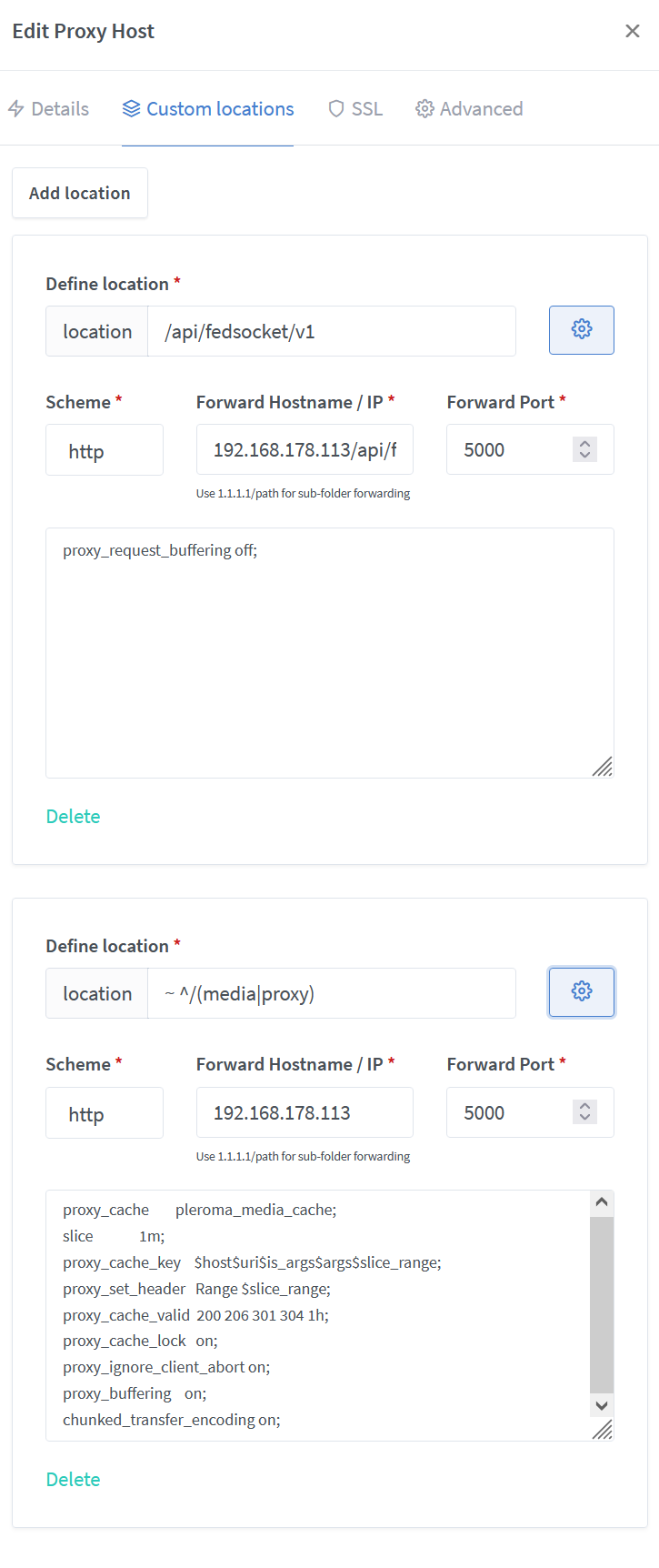
Okay, thank you very much! I did exactly as you described and all works, including the media proxy.
image

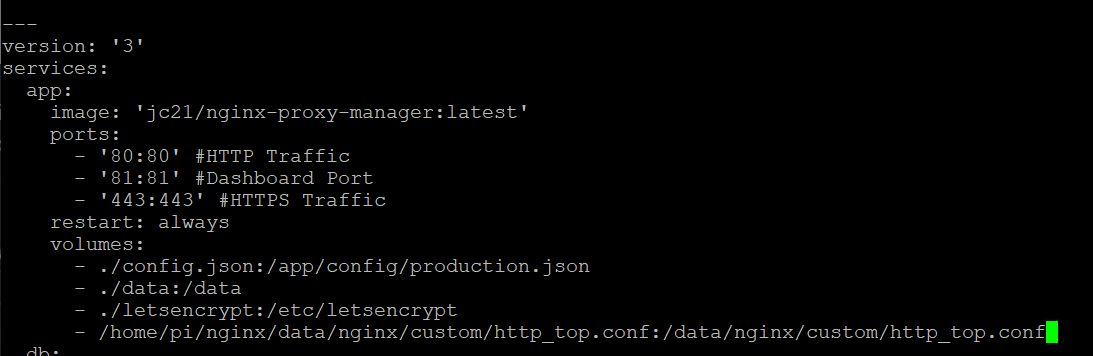
I have also added the http_top.conf file to my nginx reverse proxy manager docker-compose.yml file so that when I rebuild it this file and change will not be lost!
image

(although I am quite uncertain whether this works or makes a difference as the entire "data" directory is mounted)

So, after everything worked I added the three not-already-set variables:

ssl_session_tickets off;
ssl_stapling on;
ssl_stapling_verify on;

And it is still online.
You can visit https://social.uden.ai/ and it seems to all work. Now I just need to verify whether the federation feature all works or not. It should as essentially everything has been added except for:

upstream phoenix {
        server 192.168.178.113:5000 max_fails=5 fail_timeout=60s;
    }

as well as:

        location / {
            proxy_pass http://phoenix;
        }

The upstream phoenix (or any other name) cannot be simply set in the advanced settings for obvious reasons (or can I add it to the http_top.conf?) and if I add the second string of code it wouldn't work without the first one (obviously) and if I were to replace "phoenix" with my local IP, it would simply stop enforcing https, so, yeah.
However, main things should be fixed. All of the nginx config suggested by the Pleroma-OTP install here:
https://docs-develop.pleroma.social/backend/installation/otp_en/#edit-the-nginx-config
Are added. So, I will test and see whether I am online to the federation.

Thank you so much for your help!!

<!-- gh-comment-id:962683124 --> @ErikUden commented on GitHub (Nov 7, 2021): Okay, thank you very much! I did exactly as you described and all works, including the media proxy. ![image](https://user-images.githubusercontent.com/52011431/140662331-b61fbd95-d351-4fac-b3ff-6f03b3f31161.png) I have also added the http_top.conf file to my nginx reverse proxy manager docker-compose.yml file so that when I rebuild it this file and change will not be lost! ![image](https://user-images.githubusercontent.com/52011431/140662090-15c7c381-39e7-43c1-922c-c498d345e7be.png) (although I am quite uncertain whether this works or makes a difference as the entire "data" directory is mounted) So, after everything worked I added the three not-already-set variables: ``` ssl_session_tickets off; ssl_stapling on; ssl_stapling_verify on; ``` And it is still online. You can visit https://social.uden.ai/ and it seems to all work. Now I just need to verify whether the federation feature all works or not. It should as essentially everything has been added except for: ``` upstream phoenix { server 192.168.178.113:5000 max_fails=5 fail_timeout=60s; } ``` as well as: ``` location / { proxy_pass http://phoenix; } ``` The `upstream phoenix` (or any other name) cannot be simply set in the advanced settings for obvious reasons (or can I add it to the http_top.conf?) and if I add the second string of code it wouldn't work without the first one (obviously) and if I were to replace "phoenix" with my local IP, it would simply stop enforcing https, so, yeah. However, main things should be fixed. All of the nginx config suggested by the Pleroma-OTP install here: https://docs-develop.pleroma.social/backend/installation/otp_en/#edit-the-nginx-config Are added. So, I will test and see whether I am online to the federation. Thank you so much for your help!!
Author
Owner

@ErikUden commented on GitHub (Nov 7, 2021):

image

Okay, wonderful. I have just been followed by someone from another Pleroma instance! The federation is online. I am very grateful for your immense help @chaptergy Thank you very much! Nginx is not my strongest suite, but thanks to you that did not stop me from putting a Pleroma instance online. Very, very nice.

<!-- gh-comment-id:962683722 --> @ErikUden commented on GitHub (Nov 7, 2021): ![image](https://user-images.githubusercontent.com/52011431/140662459-b44d8583-94f3-4c47-af2e-62c9b796d4b2.png) Okay, wonderful. I have just been followed by someone from another Pleroma instance! The federation is online. I am very grateful for your immense help @chaptergy Thank you very much! Nginx is not my strongest suite, but thanks to you that did not stop me from putting a Pleroma instance online. Very, very nice.
Author
Owner

@chaptergy commented on GitHub (Nov 7, 2021):

Great to hear everything works! You don't actually need the upstream phoenix part. If you have set the host configuration on the main config page to use 192.168.178.113 and port 500 the location / is automatically generated for you. No need for the upstream section. I'm not sure why you'd think it would stop enforcing https, if you enable HSTS you should be absolutely fine.

<!-- gh-comment-id:962684245 --> @chaptergy commented on GitHub (Nov 7, 2021): Great to hear everything works! You don't actually need the `upstream phoenix` part. If you have set the host configuration on the main config page to use `192.168.178.113` and port `500` the location `/` is automatically generated for you. No need for the upstream section. I'm not sure why you'd think it would stop enforcing https, if you enable HSTS you should be absolutely fine.
Author
Owner

@jachin commented on GitHub (Nov 11, 2022):

Thank you all for this discussion it was very helpful. 1 additional note on something that took me a while to figure out. I had to change the configuration on Pleroma so it would allow an IP address other than 127.0.0.1 to connect to it.

https://docs.pleroma.social/backend/configuration/cheatsheet/#pleromawebendpoint

I had to change the ip and then restart Pleroma.

<!-- gh-comment-id:1312213208 --> @jachin commented on GitHub (Nov 11, 2022): Thank you all for this discussion it was very helpful. 1 additional note on something that took me a while to figure out. I had to change the configuration on Pleroma so it would allow an IP address other than `127.0.0.1` to connect to it. https://docs.pleroma.social/backend/configuration/cheatsheet/#pleromawebendpoint I had to change the `ip` and then restart Pleroma.
Author
Owner

@ErikUden commented on GitHub (Nov 12, 2022):

Thank you all for this discussion it was very helpful. 1 additional note on something that took me a while to figure out. I had to change the configuration on Pleroma so it would allow an IP address other than 127.0.0.1 to connect to it.

https://docs.pleroma.social/backend/configuration/cheatsheet/#pleromawebendpoint

I had to change the ip and then restart Pleroma.

Wait, could you post a copy of your configuration?

<!-- gh-comment-id:1312405422 --> @ErikUden commented on GitHub (Nov 12, 2022): > Thank you all for this discussion it was very helpful. 1 additional note on something that took me a while to figure out. I had to change the configuration on Pleroma so it would allow an IP address other than `127.0.0.1` to connect to it. > > https://docs.pleroma.social/backend/configuration/cheatsheet/#pleromawebendpoint > > I had to change the `ip` and then restart Pleroma. Wait, could you post a copy of your configuration?
Author
Owner

@jachin commented on GitHub (Nov 12, 2022):

Well... there are secrets in the config file, so I'm not going to share it all. But this is part of my prod.secret.exs

This is the part in config :pleroma, Pleroma.Web.Endpoint, ... I think I don't really know how to read these .exs config files.

http: [ip: {0, 0, 0, 0}, port: 4000],

I think this setting means it will allow any IP address can connect to my Pleroma server, in theory I could restrict this to just my Nginx Proxy Manger.

<!-- gh-comment-id:1312553678 --> @jachin commented on GitHub (Nov 12, 2022): Well... there are _secrets_ in the config file, so I'm not going to share it all. But this is part of my `prod.secret.exs` This is the part in `config :pleroma, Pleroma.Web.Endpoint,` ... I think I don't _really_ know how to read these `.exs` config files. ``` http: [ip: {0, 0, 0, 0}, port: 4000], ``` I _think_ this setting means it will allow _any_ IP address can connect to my Pleroma server, in theory I could restrict this to _just_ my Nginx Proxy Manger.
Sign in to join this conversation.
No milestone
No project
No assignees
1 participant
Notifications
Due date
The due date is invalid or out of range. Please use the format "yyyy-mm-dd".

No due date set.

Dependencies

No dependencies set.

Reference
starred/nginx-proxy-manager-NginxProxyManager#1187
No description provided.