[GH-ISSUE #533] Create a config for Asus k550jx #485

Closed
opened 2026-02-26 00:32:47 +03:00 by kerem · 5 comments
Owner

Originally created by @r4wn4k on GitHub (Aug 7, 2018).
Original GitHub issue: https://github.com/hirschmann/nbfc/issues/533

My laptop is Asus k550jx(i5 4200H , 8GB Ram, 2GB Nvidia GTX 950M). I'm using nbfc with asus g501jw's config cause nbfc doesn't have any config for my laptop. When i put the slider to 100%,my fan rotates to 3600rpm. But my laptop's fan can rotate 4200rpm highest. How can i put my laptop's fan rotation to 4200rpm all the time??? Can you guys please create a config for my laptop with which i can set the fan to 4200rpm??? I can provide all addiotional info if needed.

Originally created by @r4wn4k on GitHub (Aug 7, 2018). Original GitHub issue: https://github.com/hirschmann/nbfc/issues/533 My laptop is Asus k550jx(i5 4200H , 8GB Ram, 2GB Nvidia GTX 950M). I'm using nbfc with asus g501jw's config cause nbfc doesn't have any config for my laptop. When i put the slider to 100%,my fan rotates to 3600rpm. But my laptop's fan can rotate 4200rpm highest. How can i put my laptop's fan rotation to 4200rpm all the time??? Can you guys please create a config for my laptop with which i can set the fan to 4200rpm??? I can provide all addiotional info if needed.
kerem closed this issue 2026-02-26 00:32:47 +03:00
Author
Owner

@erkexzcx commented on GitHub (Aug 10, 2018):

If you are on Windows, then NBFC comes with graphical configuration editor. I guess you need to modify g501jw config accordingly by analysing min/max values of registers. Everything is given to you and all you need to do is to find min/max values. Good luck - without owning hardware it's impossible to do it. It should be fairly easy when compared to creation of config from scratch.

P.S. If you successfully make it, then share config or perfectly - create pull request.

<!-- gh-comment-id:412192998 --> @erkexzcx commented on GitHub (Aug 10, 2018): If you are on Windows, then NBFC comes with graphical configuration editor. I guess you need to modify g501jw config accordingly by analysing min/max values of registers. Everything is given to you and all you need to do is to find min/max values. Good luck - without owning hardware it's impossible to do it. It should be fairly easy when compared to creation of config from scratch. P.S. If you successfully make it, then share config or perfectly - create pull request.
Author
Owner

@r4wn4k commented on GitHub (Aug 12, 2018):

@erkexzcx thank you so much. Last question, how do i analys the min/max values of registers?? I can only edit the 501jw's min/max values of registers. I don't know how i can check what's my laptop's default min/max register value.

<!-- gh-comment-id:412331189 --> @r4wn4k commented on GitHub (Aug 12, 2018): @erkexzcx thank you so much. Last question, how do i analys the min/max values of registers?? I can only edit the 501jw's min/max values of registers. I don't know how i can check what's my laptop's default min/max register value.
Author
Owner

@erkexzcx commented on GitHub (Aug 12, 2018):

You buying me a beer for this :D


Before we begin, learn to use Google with searches like "121 to hex" and "0x3c to decimal". You will need them. Also understand a bit about how hex numbers work (decimal - 10, hex - 16):

How to understand them - look at below (Google if still not clear):

0 1 2 3 4 5 6 7 8 9 10 11 12 13 14 15 16 17 18 19 20 ...
0 1 2 3 4 5 6 7 8 9 A B C D E F 0 1 2 3 ...

Registers in NBFC is usually used as decimal, but when probing EC you will see those values in hexademical format (example: 151 is actually 97)


You really need to learn on how to probe EC registers and how to use EC probing tool.

Try to see if you can identify any registers by following this article. Just learn on how to do it and you are ready to go forward. I used powershell with administrator rights for this particular task.


Also understand that EC register values can be changed by BIOS and not just you. Another tip to know - EC register values does not necessarily change after regular reboot, so in order to fix it - hold power button to force shutdown your computer and turn it back on. See more about this.


Now let's go to the work of porting and perfecting the config:

  1. I checked your laptop's motherboard and it has just 1 fan inside. Asus ROG G501JW Config has also 1 fan, so you are safe on this. No changes needed for this point.

  2. Validate if these registers really needed (they are used to enable/disable manual control of fan by BIOS). Try to remove the below whole code and see if your config works (even on high CPU/GPU load if the fan is still under control by NBFC and not overriden by BIOS. Do not forget to reset EC registers to defaults (I wrote above on how to do it).

  <RegisterWriteConfigurations>
    <RegisterWriteConfiguration>
      <WriteMode>Set</WriteMode>
      <WriteOccasion>OnWriteFanSpeed</WriteOccasion>
      <Register>160</Register>
      <Value>45</Value>
      <ResetRequired>true</ResetRequired>
      <ResetValue>45</ResetValue>
      <ResetWriteMode>Set</ResetWriteMode>
    </RegisterWriteConfiguration>
    <RegisterWriteConfiguration>
      <WriteMode>Set</WriteMode>
      <WriteOccasion>OnWriteFanSpeed</WriteOccasion>
      <Register>166</Register>
      <Value>45</Value>
      <ResetRequired>true</ResetRequired>
      <ResetValue>45</ResetValue>
      <ResetWriteMode>Set</ResetWriteMode>
    </RegisterWriteConfiguration>
  </RegisterWriteConfigurations>

If not - add below section back and try to remove only first register configuration from this section:

  <RegisterWriteConfigurations>
    <RegisterWriteConfiguration>
      <WriteMode>Set</WriteMode>
      <WriteOccasion>OnWriteFanSpeed</WriteOccasion>
      <Register>160</Register>
      <Value>45</Value>
      <ResetRequired>true</ResetRequired>
      <ResetValue>45</ResetValue>
      <ResetWriteMode>Set</ResetWriteMode>
    </RegisterWriteConfiguration>
  </RegisterWriteConfigurations>

If it's still not working, then try the other register config:

  <RegisterWriteConfigurations>
    <RegisterWriteConfiguration>
      <WriteMode>Set</WriteMode>
      <WriteOccasion>OnWriteFanSpeed</WriteOccasion>
      <Register>166</Register>
      <Value>45</Value>
      <ResetRequired>true</ResetRequired>
      <ResetValue>45</ResetValue>
      <ResetWriteMode>Set</ResetWriteMode>
    </RegisterWriteConfiguration>
  </RegisterWriteConfigurations>

And if finally it still does not work - just use the same config (since you confirmed it works):

  <RegisterWriteConfigurations>
    <RegisterWriteConfiguration>
      <WriteMode>Set</WriteMode>
      <WriteOccasion>OnWriteFanSpeed</WriteOccasion>
      <Register>160</Register>
      <Value>45</Value>
      <ResetRequired>true</ResetRequired>
      <ResetValue>45</ResetValue>
      <ResetWriteMode>Set</ResetWriteMode>
    </RegisterWriteConfiguration>
    <RegisterWriteConfiguration>
      <WriteMode>Set</WriteMode>
      <WriteOccasion>OnWriteFanSpeed</WriteOccasion>
      <Register>166</Register>
      <Value>45</Value>
      <ResetRequired>true</ResetRequired>
      <ResetValue>45</ResetValue>
      <ResetWriteMode>Set</ResetWriteMode>
    </RegisterWriteConfiguration>
  </RegisterWriteConfigurations>
  1. Look at below code fragment:
  <FanConfigurations>
    <FanConfiguration>
      <ReadRegister>151</ReadRegister>
      <WriteRegister>151</WriteRegister>
      <MinSpeedValue>0</MinSpeedValue>
      <MaxSpeedValue>8</MaxSpeedValue>
      <IndependentReadMinMaxValues>false</IndependentReadMinMaxValues>
      <MinSpeedValueRead>0</MinSpeedValueRead>
      <MaxSpeedValueRead>0</MaxSpeedValueRead>
      <ResetRequired>true</ResetRequired>
      <FanSpeedResetValue>9</FanSpeedResetValue>
      <TemperatureThresholds>
       ..........
       ..........
       ..........
      </TemperatureThresholds>
      <FanSpeedPercentageOverrides />
    </FanConfiguration>
  </FanConfigurations>

3.1 Identify if there is another register for read values.

From what you see here is that register 151 is used for read and write values of your fan speed. From what we already know that this register successfully changes the fan speed, but because your laptop could be different - there might be or might not be another register for fan speed reading. I would suggest validating this by probing EC registers. I don't believe this is 100% required if config just works for you.

3.2 Finding min/max values of your fan speed register:

Disable NBFC profile, restore EC registers to defaults (now you have automatic fan control by BIOS) and probe EC by monitoring changes. You are only know interested in 151 or 0x97.

Since you confirmed it works - you are able to completely stop fan by using NBFC? If yes, then your min value will be literally 0.

Now start monitoring EC changes and then start CPU and GPU benchmark apps. Disable all undervolts if you have and use overclock if you use any - you need to reach the as high CPU/GPU temp as possible. I suggest using Furmark as it gave me the highest temps.

Now once you hear your fans go as loud as possible and you are really confident that the max speed has been reached - you can stop benchmark apps and stop probing EC registers. Check recorded values of register 97 (it is your 151, but in hex) - the highest number in the row is the max speed of your fan (it is hex value).


As I said - there is no easy way of automatically finding everything and you need a bit of understanding on how EC registers work and do the job by yourself. Since you found min/max values of register 151 (0x97) - create a new config based on Asus k550jx config, update model, name, put yourself as an author and update min/max values as well as other values if you identified so. Do not forget that Windows version of NBFC has graphical config editor. - it is the way easier to modify config file.

Also feel free to share the config if you manage to get it working.

<!-- gh-comment-id:412334233 --> @erkexzcx commented on GitHub (Aug 12, 2018): You buying me a beer for this :D _____________ Before we begin, learn to use Google with searches like "121 to hex" and "0x3c to decimal". You will need them. Also understand a bit about how hex numbers work (decimal - 10, hex - 16): How to understand them - look at below (Google if still not clear): 0 1 2 3 4 5 6 7 8 9 10 11 12 13 14 15 16 17 18 19 20 ... 0 1 2 3 4 5 6 7 8 9 A B C D E F 0 1 2 3 ... Registers in NBFC is usually used as decimal, but when probing EC you will see those values in hexademical format (example: 151 is actually 97) _____________ You really need to learn on how to [probe EC registers](https://github.com/hirschmann/nbfc/wiki/Probe-the-EC%27s-registers) and [how to use EC probing tool](https://github.com/hirschmann/nbfc/wiki/EC-probing-tool). Try to see if you can identify any registers by following this article. Just learn on how to do it and you are ready to go forward. I used powershell with administrator rights for this particular task. _____________ Also understand that EC register values can be changed by BIOS and not just you. Another tip to know - EC register values does not necessarily change after regular reboot, so in order to fix it - hold power button to force shutdown your computer and turn it back on. See [more about this](https://github.com/hirschmann/nbfc/wiki/FAQ#is-there-a-way-to-reset-my-notebook-if-something-went-wrong). _____________ Now let's go to the work of porting and perfecting the config: 1. I checked your laptop's motherboard and it has just 1 fan inside. [Asus ROG G501JW Config](https://github.com/hirschmann/nbfc/blob/master/Configs/Asus%20ROG%20G501JW.xml) has also 1 fan, so you are safe on this. No changes needed for this point. 2. Validate if these registers really needed (they are used to enable/disable manual control of fan by BIOS). Try to remove the below whole code and see if your config works (even on _high CPU/GPU load_ if the fan is still under control by NBFC and not overriden by BIOS. Do not forget to reset EC registers to defaults (I wrote above on how to do it). ``` <RegisterWriteConfigurations> <RegisterWriteConfiguration> <WriteMode>Set</WriteMode> <WriteOccasion>OnWriteFanSpeed</WriteOccasion> <Register>160</Register> <Value>45</Value> <ResetRequired>true</ResetRequired> <ResetValue>45</ResetValue> <ResetWriteMode>Set</ResetWriteMode> </RegisterWriteConfiguration> <RegisterWriteConfiguration> <WriteMode>Set</WriteMode> <WriteOccasion>OnWriteFanSpeed</WriteOccasion> <Register>166</Register> <Value>45</Value> <ResetRequired>true</ResetRequired> <ResetValue>45</ResetValue> <ResetWriteMode>Set</ResetWriteMode> </RegisterWriteConfiguration> </RegisterWriteConfigurations> ``` If not - add below section back and try to remove only first register configuration from this section: ``` <RegisterWriteConfigurations> <RegisterWriteConfiguration> <WriteMode>Set</WriteMode> <WriteOccasion>OnWriteFanSpeed</WriteOccasion> <Register>160</Register> <Value>45</Value> <ResetRequired>true</ResetRequired> <ResetValue>45</ResetValue> <ResetWriteMode>Set</ResetWriteMode> </RegisterWriteConfiguration> </RegisterWriteConfigurations> ``` If it's still not working, then try the other register config: ``` <RegisterWriteConfigurations> <RegisterWriteConfiguration> <WriteMode>Set</WriteMode> <WriteOccasion>OnWriteFanSpeed</WriteOccasion> <Register>166</Register> <Value>45</Value> <ResetRequired>true</ResetRequired> <ResetValue>45</ResetValue> <ResetWriteMode>Set</ResetWriteMode> </RegisterWriteConfiguration> </RegisterWriteConfigurations> ``` And if finally it still does not work - just use the same config (since you confirmed it works): ``` <RegisterWriteConfigurations> <RegisterWriteConfiguration> <WriteMode>Set</WriteMode> <WriteOccasion>OnWriteFanSpeed</WriteOccasion> <Register>160</Register> <Value>45</Value> <ResetRequired>true</ResetRequired> <ResetValue>45</ResetValue> <ResetWriteMode>Set</ResetWriteMode> </RegisterWriteConfiguration> <RegisterWriteConfiguration> <WriteMode>Set</WriteMode> <WriteOccasion>OnWriteFanSpeed</WriteOccasion> <Register>166</Register> <Value>45</Value> <ResetRequired>true</ResetRequired> <ResetValue>45</ResetValue> <ResetWriteMode>Set</ResetWriteMode> </RegisterWriteConfiguration> </RegisterWriteConfigurations> ``` 3. Look at below code fragment: ``` <FanConfigurations> <FanConfiguration> <ReadRegister>151</ReadRegister> <WriteRegister>151</WriteRegister> <MinSpeedValue>0</MinSpeedValue> <MaxSpeedValue>8</MaxSpeedValue> <IndependentReadMinMaxValues>false</IndependentReadMinMaxValues> <MinSpeedValueRead>0</MinSpeedValueRead> <MaxSpeedValueRead>0</MaxSpeedValueRead> <ResetRequired>true</ResetRequired> <FanSpeedResetValue>9</FanSpeedResetValue> <TemperatureThresholds> .......... .......... .......... </TemperatureThresholds> <FanSpeedPercentageOverrides /> </FanConfiguration> </FanConfigurations> ``` 3.1 Identify if there is another register for read values. From what you see here is that register **151** is used for read and write values of your fan speed. From what we already know that this register successfully changes the fan speed, but because your laptop could be different - there might be or might **not** be another register for fan speed reading. I would suggest validating this by probing EC registers. I don't believe this is 100% required if config _just works_ for you. 3.2 Finding min/max values of your fan speed register: Disable NBFC profile, restore EC registers to defaults (now you have automatic fan control by BIOS) and probe EC by monitoring changes. You are only know interested in **151** or **0x97**. Since you confirmed it works - you are able to completely stop fan by using NBFC? If yes, then your min value will be literally **0**. Now start monitoring EC changes and then start CPU and GPU benchmark apps. Disable all undervolts if you have and use overclock if you use any - you need to reach the as high CPU/GPU temp as possible. I suggest using [Furmark](https://geeks3d.com/furmark/downloads/) as it gave me the highest temps. Now once you hear your fans go as loud as possible and you are really confident that the max speed has been reached - you can stop benchmark apps and stop probing EC registers. Check recorded values of register **97** (it is your 151, but in hex) - _the highest number in the row is the max speed of your fan_ (it is hex value). _____________ As I said - there is no easy way of automatically finding everything and you need a bit of understanding on how EC registers work and do the job by yourself. Since you found min/max values of register 151 (0x97) - create a new config based on Asus k550jx config, update model, name, put yourself as an author and update min/max values as well as other values if you identified so. **Do not forget that Windows version of NBFC has graphical config editor.** - it is the way easier to modify config file. Also feel free to share the config if you manage to get it working.
Author
Owner

@r4wn4k commented on GitHub (Aug 24, 2018):

fanspeed

@erkexzcx done 😃 all i did is edit the asus g501jw's write register config and put 166 in register and 99 in value. Now my fans are at full 4200rpm(fan overboost)

nbfc

<!-- gh-comment-id:415748548 --> @r4wn4k commented on GitHub (Aug 24, 2018): ![fanspeed](https://user-images.githubusercontent.com/42183551/44585264-92555400-a7cd-11e8-8421-6666ccd097d9.jpg) @erkexzcx done 😃 all i did is edit the asus g501jw's write register config and put 166 in register and 99 in value. Now my fans are at full 4200rpm(fan overboost) ![nbfc](https://user-images.githubusercontent.com/42183551/44585971-e6613800-a7cf-11e8-8170-37007eb557ce.jpg)
Author
Owner

@erkexzcx commented on GitHub (Aug 24, 2018):

This is so great! Please consider creating pull request or send this config to email NotebookFanControl@t-online.de. Hope this email still being monitored by author.

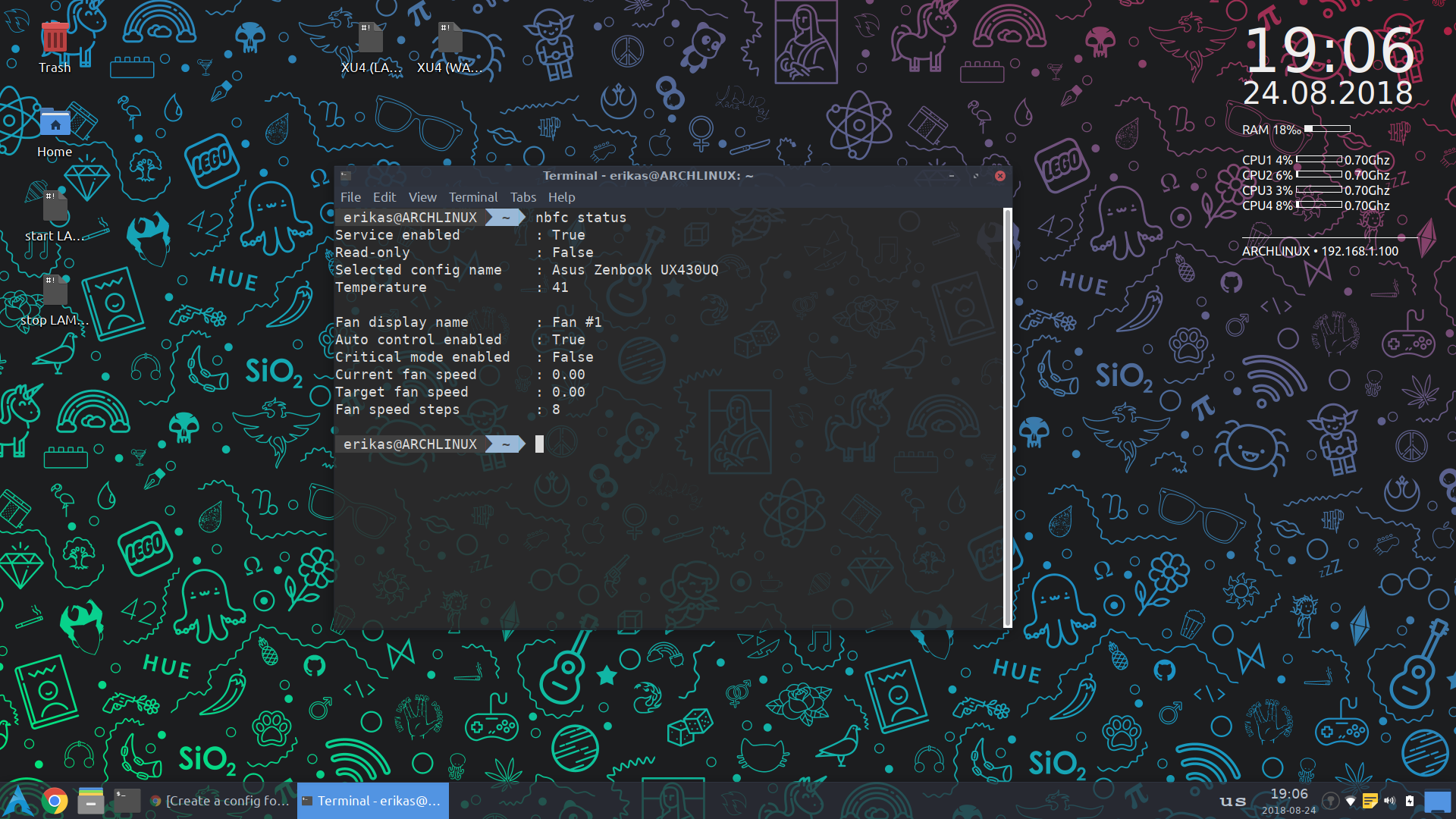
By the way, your Windows 10 looks like Linux equipped with Conky and monitoring tools :) Here is mine:
screenshot_2018-08-24_19-06-19

And yeah - resolve this issue 👍

<!-- gh-comment-id:415805888 --> @erkexzcx commented on GitHub (Aug 24, 2018): This is so great! Please consider creating pull request or send this config to email [NotebookFanControl@t-online.de](mailto:NotebookFanControl@t-online.de). Hope this email still being monitored by author. By the way, your Windows 10 looks like Linux equipped with Conky and monitoring tools :) Here is mine: ![screenshot_2018-08-24_19-06-19](https://user-images.githubusercontent.com/5955795/44595124-d26a0600-a7d0-11e8-94b8-6582ec22872e.png) And yeah - resolve this issue :+1:
Sign in to join this conversation.
No milestone
No project
No assignees
1 participant
Notifications
Due date
The due date is invalid or out of range. Please use the format "yyyy-mm-dd".

No due date set.

Dependencies

No dependencies set.

Reference
starred/nbfc-hirschmann#485
No description provided.